If you’re trying to stay anonymous online, you’ve probably wondered: does using Tor with a VPN disable browser fingerprinting?
Excellent question, but the short answer is NO. While this combination sounds powerful, it doesn’t stop websites from tracking your unique digital identity.
Let’s break down why this happens and what you can actually do to protect yourself from fingerprint browsing techniques.
What is Browser Fingerprinting?
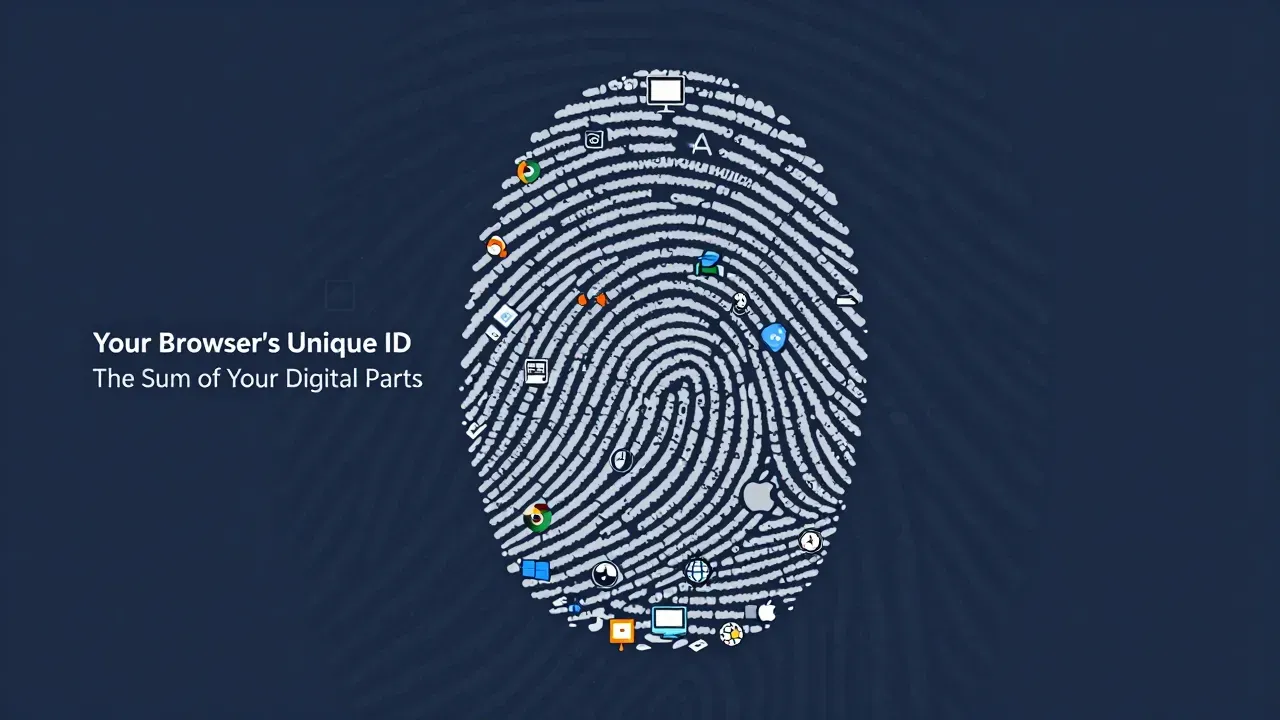
Browser fingerprinting is a tracking method that identifies you based on your device’s unique characteristics. Think of it like a digital fingerprint—every browser and device combination creates a distinct pattern.
Websites collect data points such as:
- Screen resolution and color depth
- Installed fonts and plugins
- Browser version and operating system
- Time zone and language settings
- Graphics card details (WebGL)
- Canvas rendering patterns
When combined, these attributes create a unique identifier. Studies show that 83.6% of browsers are completely unique, making fingerprinting surprisingly accurate.
Unlike cookies, which you can delete, fingerprint browsing happens automatically whenever you visit a website. The data is collected through JavaScript and stored remotely, making it nearly impossible to control.
How Does Browser Fingerprinting Work?
Every time you visit a website, your browser shares information to ensure pages display correctly. Websites use this data to create your fingerprint.
The process is simple: Your browser sends basic details like user-agent strings. Websites then run JavaScript scripts to gather deeper device information. All collected data gets combined into a unique hash identifier that tracks you across the web—even if you clear cookies.
Advanced techniques like canvas fingerprinting force your browser to render hidden images. How your device renders these graphics reveals information about your GPU and drivers.

What Roles of Tor and a VPN Play?
Tor Browser was specifically designed to resist fingerprinting. It makes all users look identical by standardizing fonts, screen resolution, time zones, and blocking fingerprinting scripts. These protections come from the Tor Browser application, not the Tor network itself.
A VPN focuses on network privacy. It hides your real IP address and encrypts traffic. However, a VPN does nothing to alter your browser’s fingerprint. Websites still see all your device characteristics—just from a different IP address.
Why Can’t Using Tor with a VPN Disable Browser Fingerprinting?
There are two common ways people combine these tools, and neither helps with fingerprinting:
VPN → Tor (VPN first): You connect to a VPN, then open Tor Browser. This hides your Tor usage from your internet provider. Your fingerprint protection comes entirely from Tor Browser—the VPN adds nothing to anti-fingerprinting efforts.
Tor → VPN (VPN last): Traffic goes through Tor, then exits via a VPN server. This setup actually weakens Tor’s anonymity by creating a permanent exit point.
The critical mistake many people make is routing their regular browser (Chrome, Firefox, Edge) through Tor or a VPN. This provides zero fingerprint protection. Your browser still broadcasts all its unique characteristics.
If you want to unblock websites or bypass school filters while staying anonymous, the browser you use matters more than your network routing.
How to Actually Fight Browser Fingerprinting?
Ready for real solutions? Here are three proven methods to defeat fingerprint browsing.
1. Use a Privacy-Focused Browser Like RoxyBrowser
RoxyBrowser is a specialized antidetect browser designed specifically to fight fingerprinting. Unlike basic browsers, it creates completely isolated environments for each browsing profile.

Key Features:
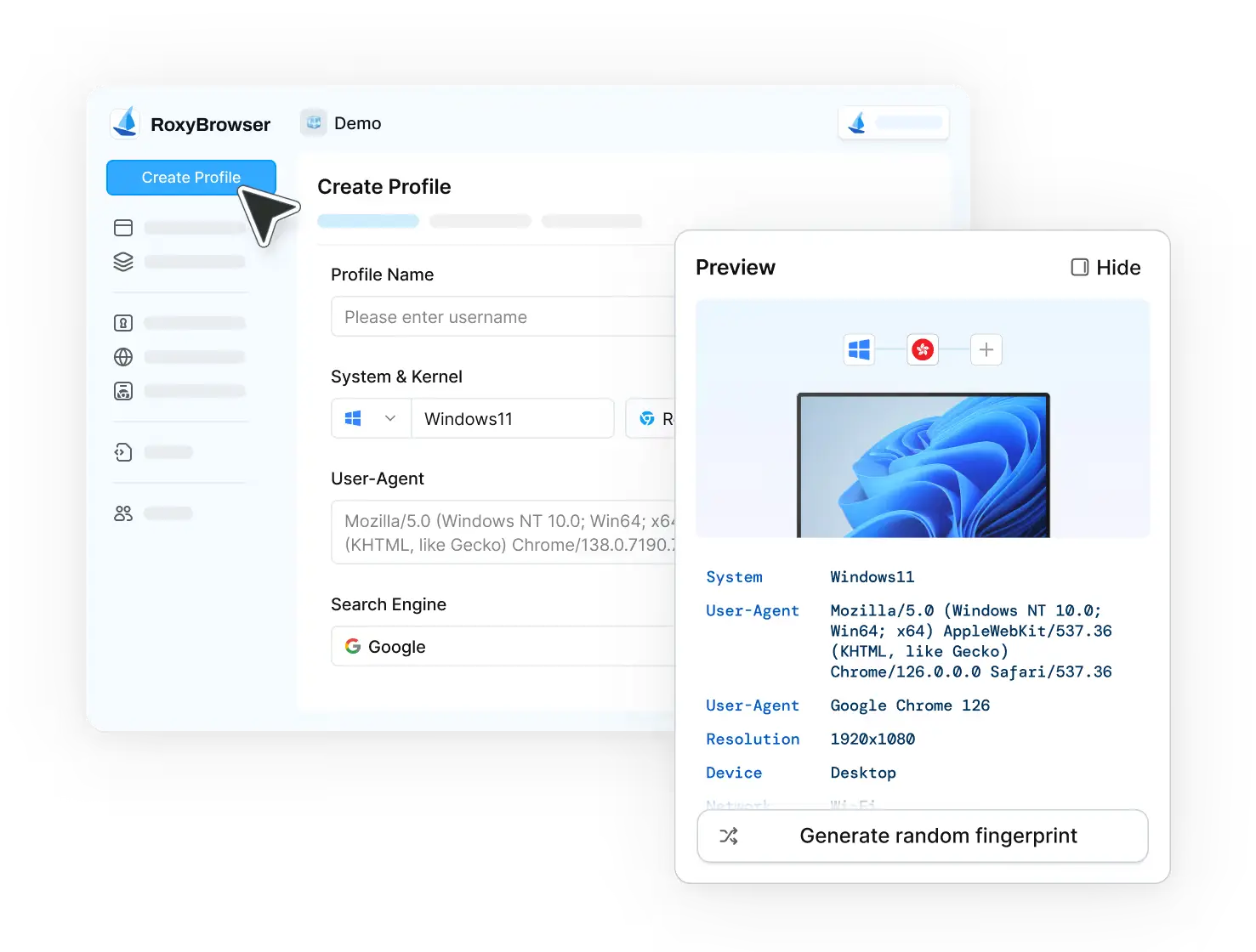
Dynamic Fingerprint Generation: RoxyBrowser automatically generates unique, authentic-looking fingerprints for every profile. Each one includes realistic combinations of:
- GPU and graphics settings
- Operating system details
- Installed fonts and languages
- Canvas and WebGL data
- Screen resolution and color depth
Perfect Isolation: Every browser profile runs independently with its own cookies, cache, and local storage. Websites cannot link your activities across different profiles.
Built-in Proxy Support: RoxyBrowser integrates seamlessly with residential, mobile, and datacenter proxies from 195+ countries. Your IP address and fingerprint always match the location you’re simulating.
API Automation: Automate repetitive tasks using Selenium, Puppeteer, or RoxyBrowser’s native API while maintaining human-like behavior patterns.
How to Set Up RoxyBrowser:
- Download and install RoxyBrowser for Windows, macOS, or Linux.
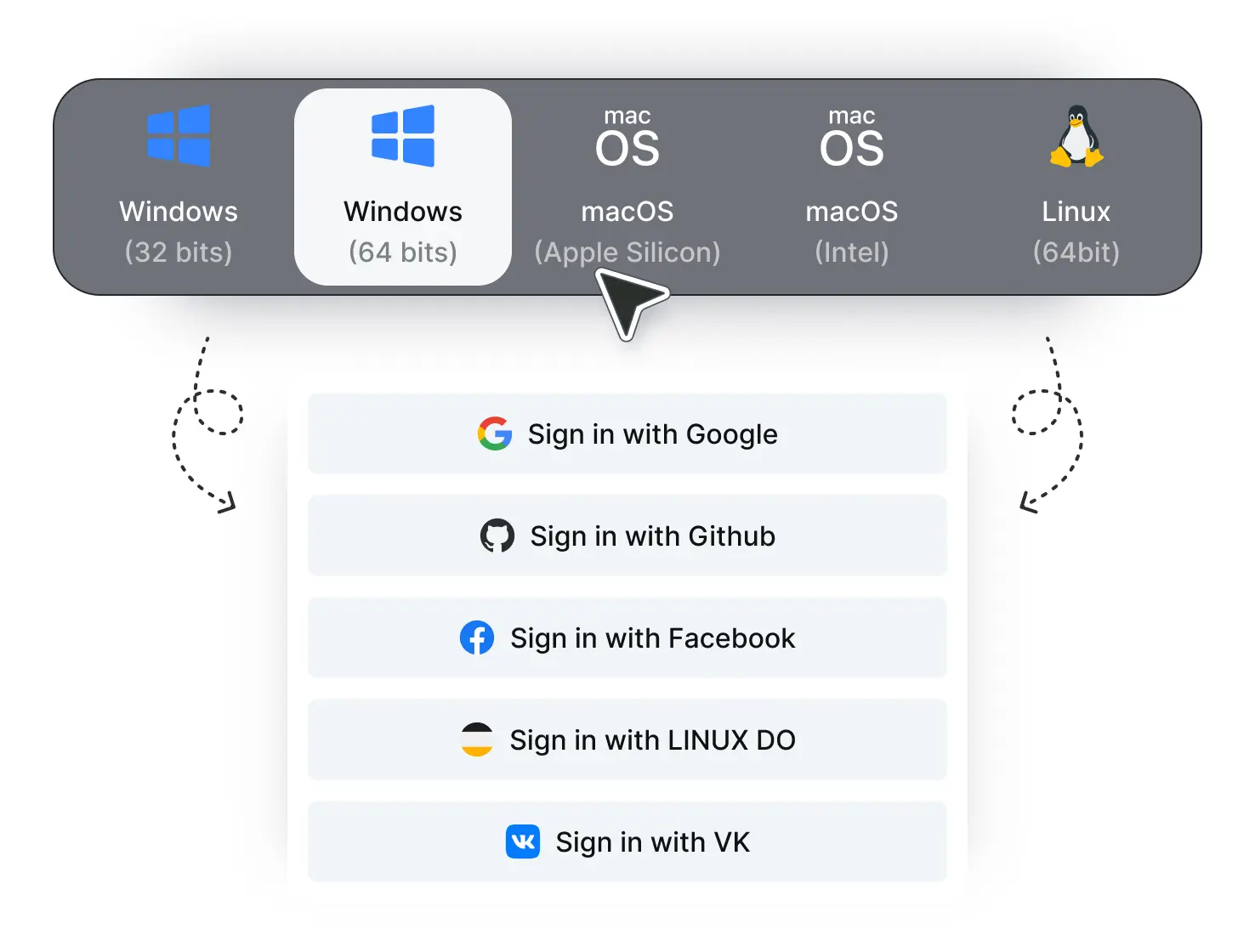
- Create your first profile and enter basic details. Configure your fingerprint settings (or let RoxyBrowser auto-generate them). Add a proxy if needed to match your target location.
- Click “Open” to launch your protected browsing session.
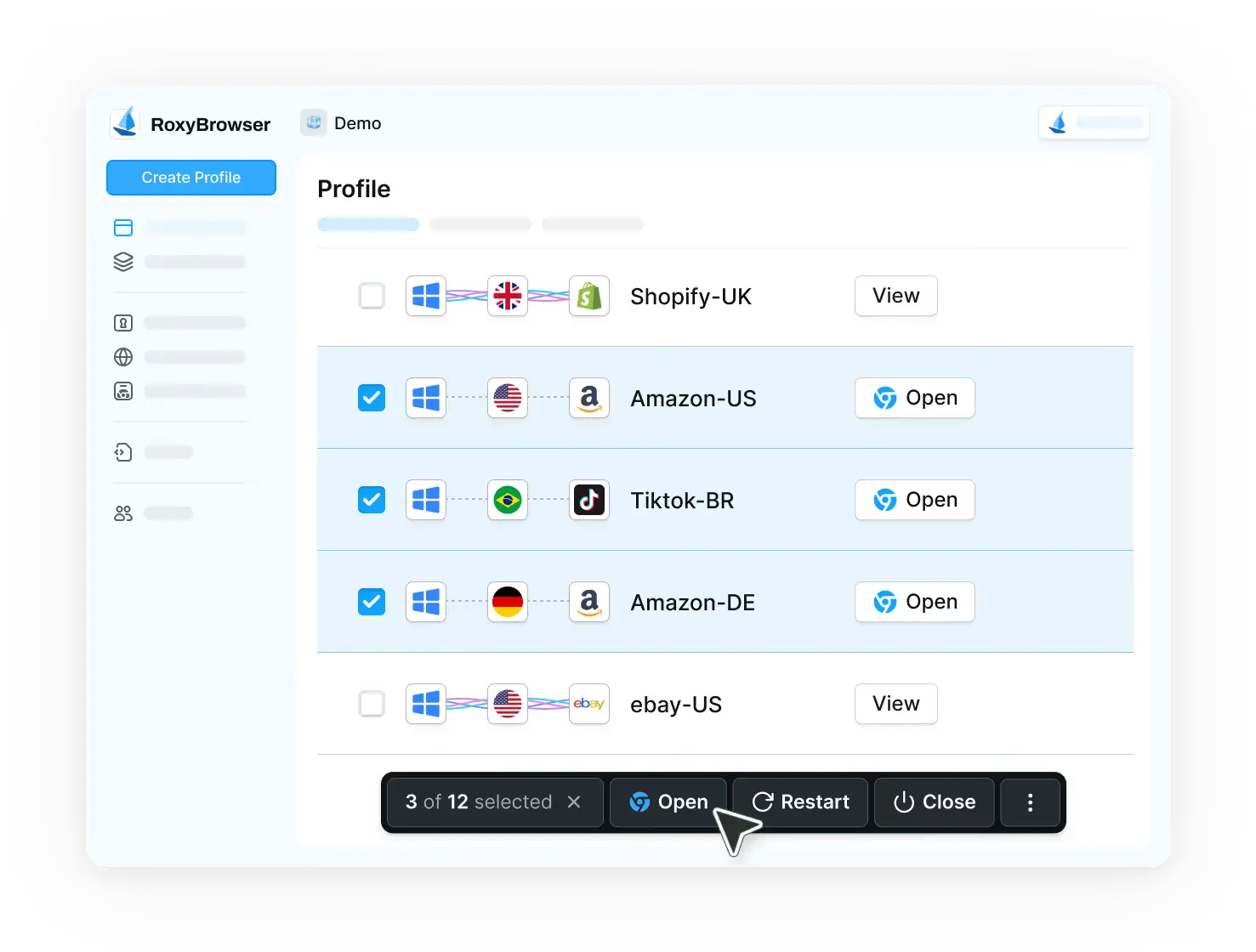
With RoxyBrowser, you get a powerful fingerprint browser that goes beyond simple VPNs. Each profile appears as a completely different user to any website tracking system.
2. Use Tor Browser for General Anonymous Browsing
If you don’t need multiple profiles, Tor Browser remains one of the strongest free options for fingerprint resistance. Its main advantage is making all users look identical.
Pros: Free, well-tested, and blocks most fingerprinting attempts by default.
Cons: Slower browsing speeds, and some websites block Tor exit nodes. Also, you can only run one anonymous identity at a time.
3. Harden Firefox with Privacy Extensions
For everyday browsing, you can strengthen Firefox against fingerprinting:
- Install uBlock Origin (advanced mode) to block tracking scripts
- Use CanvasBlocker to prevent canvas fingerprinting
- Add Temporary Containers to isolate each website
- Apply the arkenfox user.js configuration for advanced hardening
This approach requires technical knowledge but provides good protection for regular web use.
Comparison: The Best Methods to Fight Browser Fingerprinting
| Method | Fingerprint Protection | Multi-Profile Support | Speed | Best For |
|---|---|---|---|---|
| RoxyBrowser | Excellent (unique fingerprints per profile) | Unlimited isolated profiles | Fast | Multi-accounting, business users, testing across regions |
| Tor Browser | Excellent (identical fingerprints for all) | Single profile only | Slow | General anonymity, sensitive browsing |
| Hardened Firefox | Good (blocks most techniques) | Manual profile switching | Fast | Privacy-conscious daily browsing |
RoxyBrowser stands out as the most versatile solution. It combines fingerprint spoofing, proxy management, and profile isolation in one platform—perfect for anyone who needs to manage multiple identities or test websites from different locations.
Conclusion
Does using Tor with a VPN disable browser fingerprinting? No. Fingerprint browsing operates at the browser level, while Tor and VPNs work at the network level.
The solution isn’t adding more network tools—it’s using a browser specifically designed to defeat fingerprinting. Whether you choose Tor Browser for simple anonymous browsing or RoxyBrowser for advanced multi-profile management, your browser choice matters most.
For professional users who need to unblock websites, manage multiple accounts, or test across regions, RoxyBrowser provides the most comprehensive fingerprint protection available. Its combination of authentic fingerprint generation, complete isolation, and enterprise-grade features makes it the ideal website unblocker for modern privacy needs.
Stop relying on outdated combinations of VPNs and Tor. Start using tools built specifically to fight the fingerprinting tracking you face today.


